






macOS Software Update & Migration Toolkit
Mac Software Updater is a targeted automation tool designed to bring order to your macOS environment. This project combines Homebrew, Mac App Store CLI (mas), and SwiftBar to solve two specific problems:
- Migration: Moving manually installed applications under the control of package managers (App Store or Homebrew).
- Updates: Monitors updates from the menu bar and applies them via a single terminal command.
⚠️ Note to Contributors & Testers
- Pull Requests: Please submit all changes to the
developbranch. Themainbranch is reserved for stable releases.- Upcoming Features: Want to try the latest version before it’s released? Switch to the
developbranch to see what’s next.
🚀 Key Features
- Fail-Safe Migration: Safely converts “Drag & Drop” apps to Homebrew Casks or App Store versions without data loss.
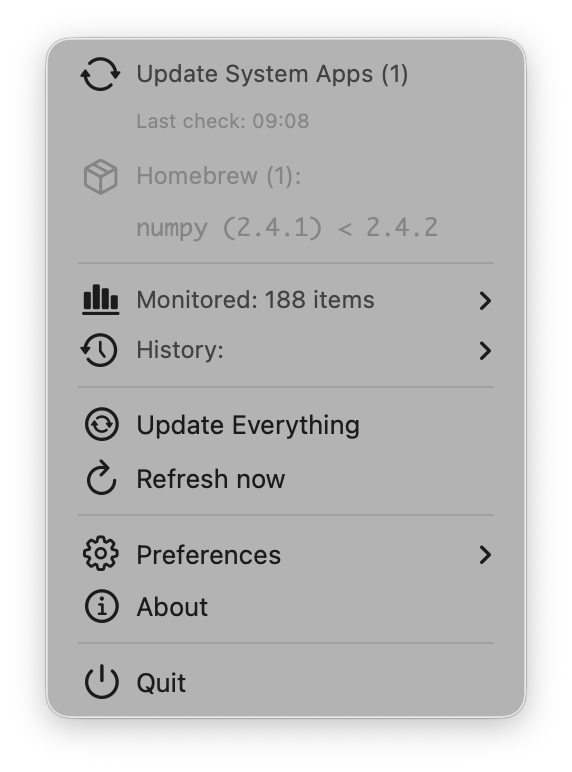
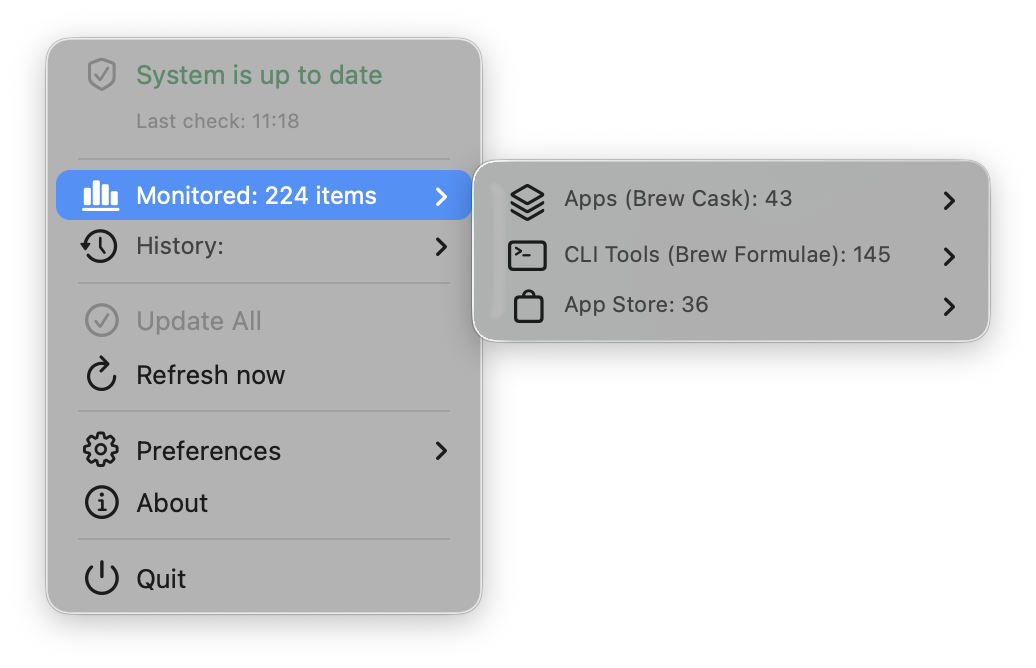
- Menu Bar Dashboard: Detailed breakdown of Casks, Formulae, Store apps, and Developer Tools (with version numbers).
- One-Click Update: Runs
brew upgrade,mas upgrade, and global dev tools updates in a terminal window with a single click. - Built-in Uninstaller: A dedicated script to safely remove the toolkit and its logs.
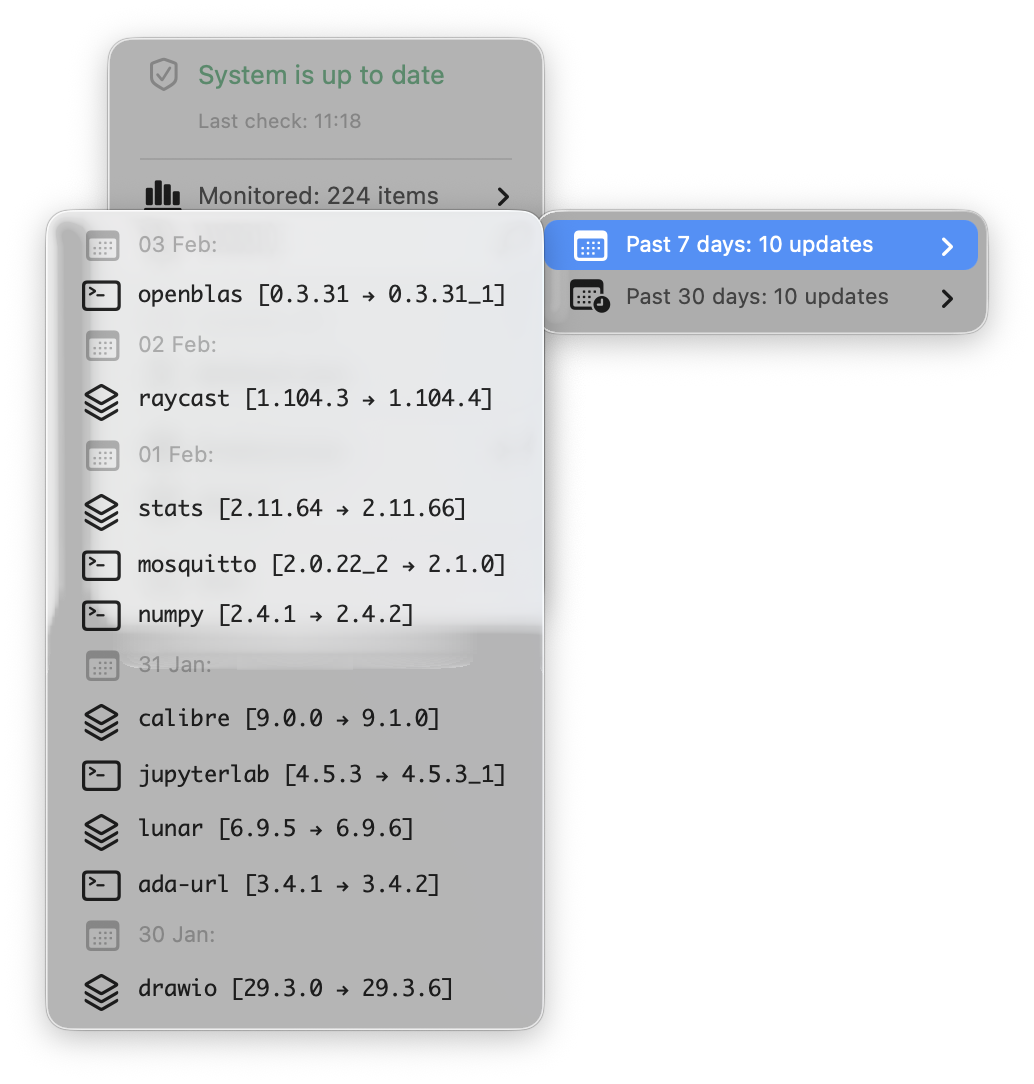
- Smart History: Tracks how many updates you’ve installed over the last 7 and 30 days.
- Apple Silicon Ready: Works natively on M1/M2/M3 and Intel Macs.
- Resilient Updates: Features a smart failover system that automatically switches to a backup server (Codeberg) if GitHub is unreachable.
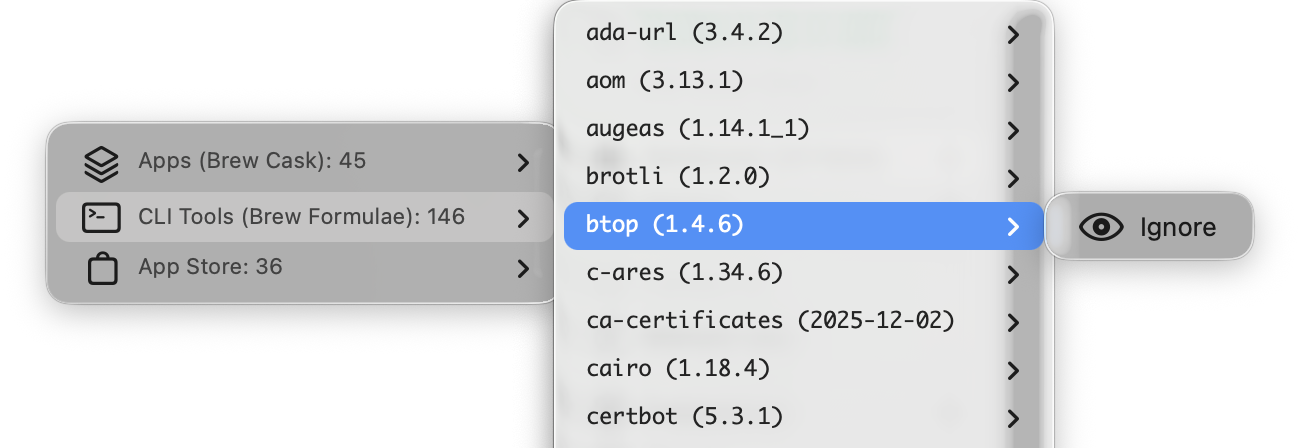
- Granular Control: Easily ignore (pin) specific updates directly from the menu if you need to stay on an older version.
- Modular Updates: Optional App Store and Developer Tools (
npm,pipx,cargo) support. Enable or disable these modules globally if you prefer to manage them manually. - Vulnerability Auditing: Alerts on high-severity security vulnerabilities in Homebrew packages (powered by
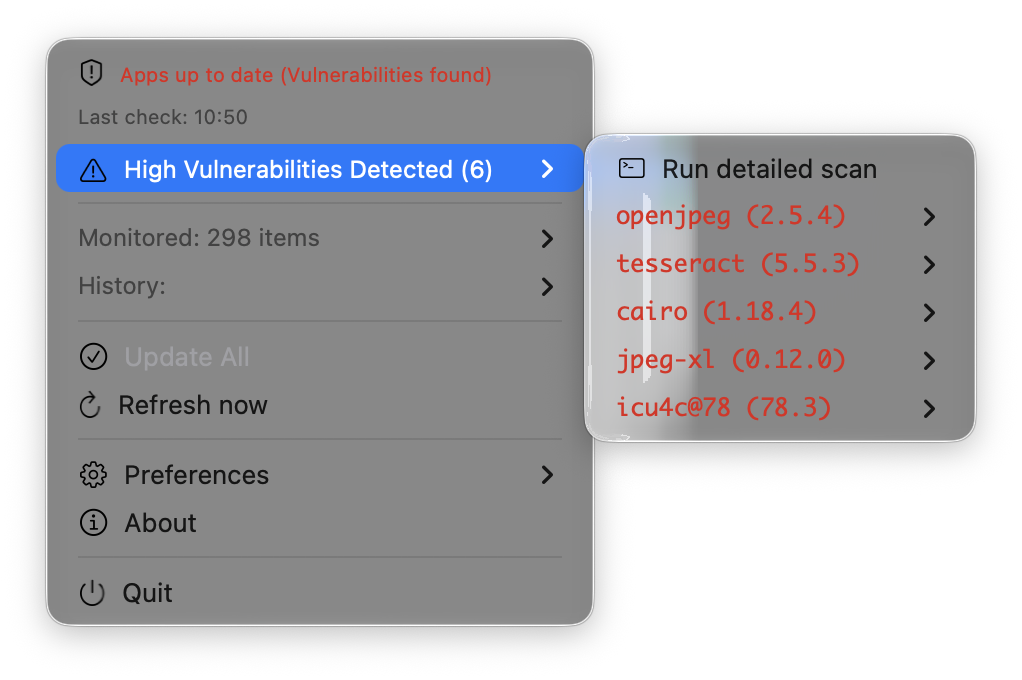
brew vulns), linking directly to OSV databases with an option to run interactive terminal scans. - macOS System Updates: Detects pending system software updates (macOS, Safari) and provides one-click access to macOS System Settings.
- Configurable Refresh Scope: Control whether menu actions trigger a single plugin reload or a global SwiftBar refresh.
⚙️ How It Works
This is not a generic maintenance utility. It is a set of two scripts performing specific tasks:
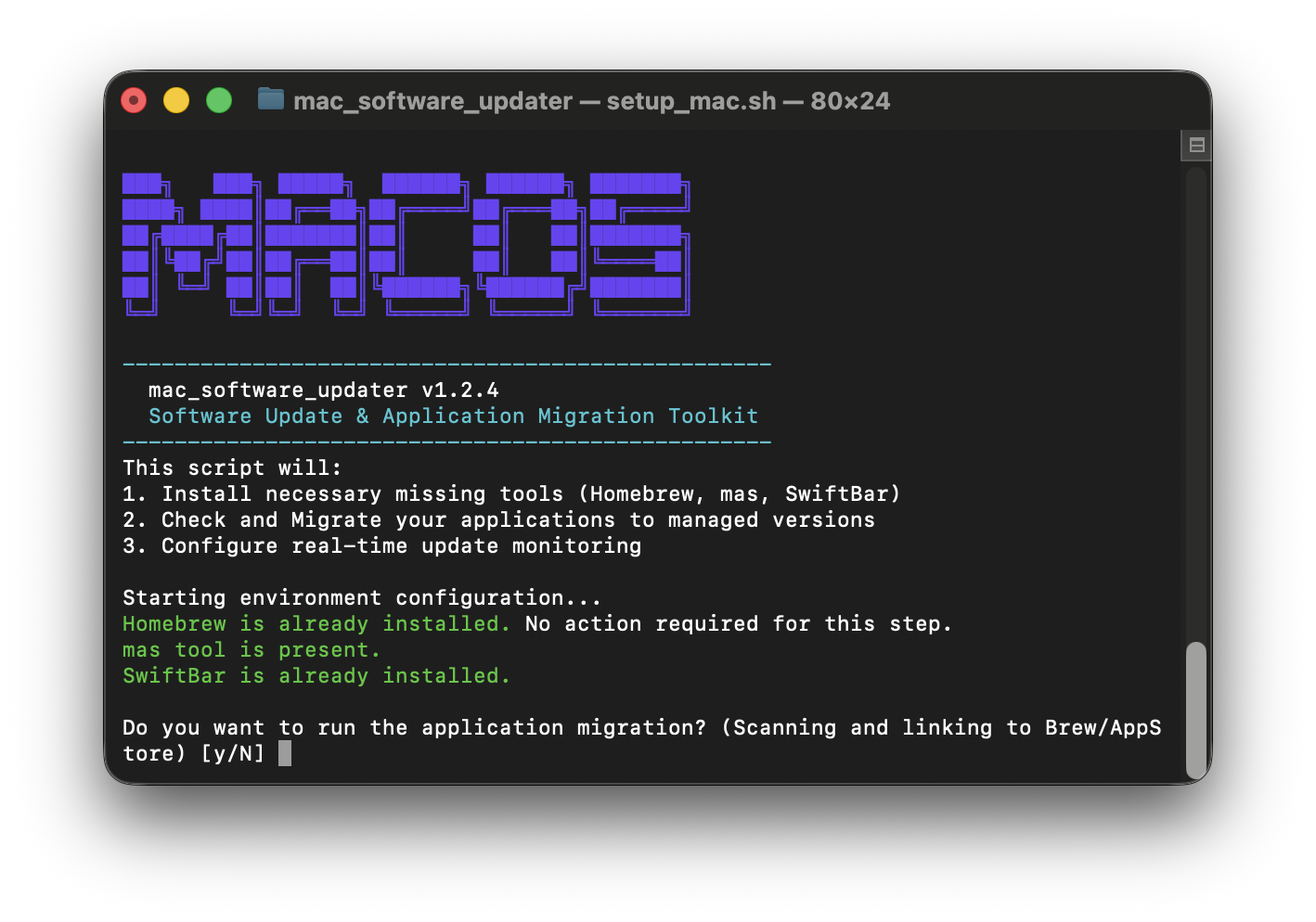
1. Migration Wizard (setup_mac.sh)
Run via terminal, this script scans your /Applications folder to detect unmanaged software. For every app found, it checks if a matching version exists in Homebrew or the App Store.
- Installation: It can reuse your Homebrew and other tools, but if you don’t have them, they will be installed
- Verification: Distinguishes between System apps, Homebrew apps, and manually downloaded apps. It will only migrate unmanaged versions
- The Decision: For every “unmanaged” app (e.g., Spotify or Chrome installed manually), it asks you for an action (depending on availability):
- [A]pp Store: Replaces the manual version with the official App Store version.
- [B]rew Cask: Replaces the manual version with a Homebrew Cask (preserving settings).
- [L]eave: Keeps the app exactly as it is.
- 🛡️Safety First: Before any migration, it creates a local backup (
.app.bak). If the new installation fails (network error, hash mismatch) it automatically restores the original application. Only removes the backup if the installation was 100% successful.
2. Menu Bar Monitor (update_system.x.sh)
A lightweight plugin for SwiftBar.
- Status: A discreet icon in the menu bar displays the total count of available updates (combining Homebrew, App Store, Developer Tools, and macOS updates), confirms that everything is up to date, or alerts about detected vulnerabilities.
- Action: Clicking “Update Everything” launches a terminal window to run
brew upgrade,mas upgrade, and global dev tools updates (npm,pipx,cargo), followed by a system cleanup and notification about pending macOS system updates.
📸 Screenshots
| Main Menu Status Overview of Homebrew and App Store updates |
History Submenu tracking update counts for the last 7 and 30 days |
|
|
| Monitored apps Submenu showing numbers of monitored apps |
Managed Apps List Submenu showing details of monitored apps |
|
|
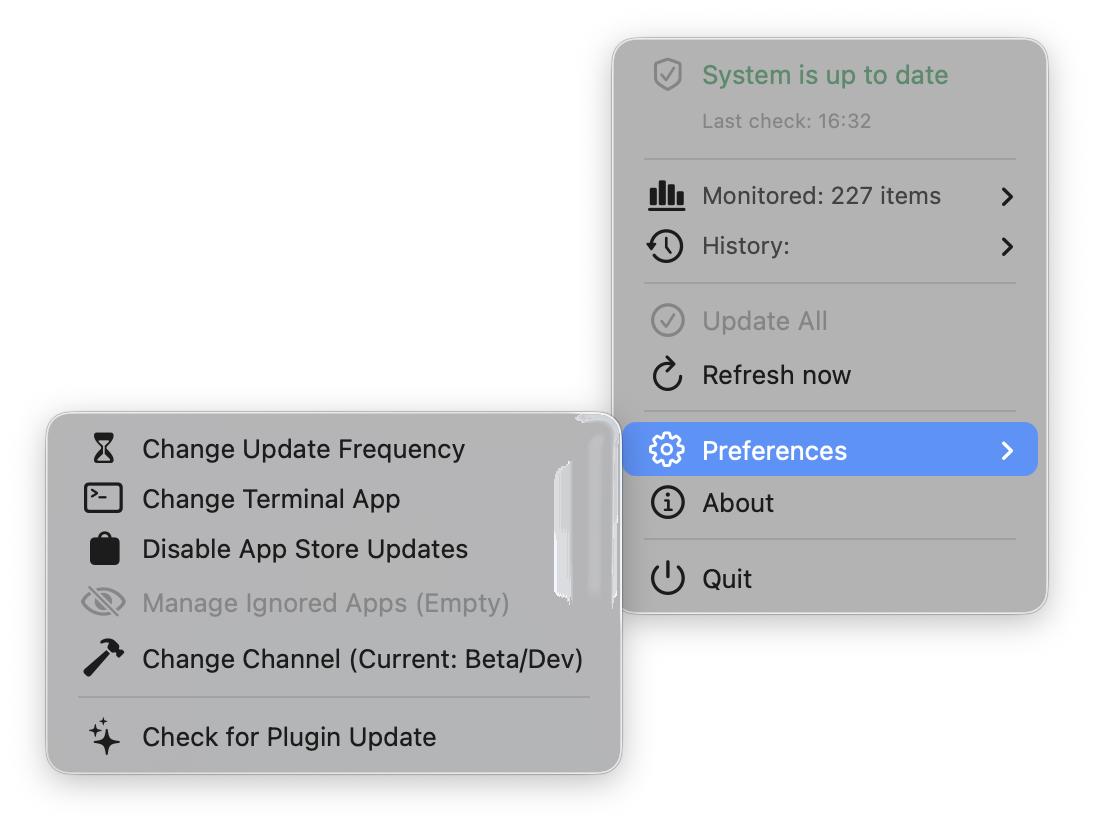
| Preferences Change Update Frequency, disable or force |
Migration tool CLI Tool |
|
|
| macOS Updates Pending macOS and system component updates |
Security Auditing High-severity Homebrew vulnerabilities detection |

|
|
Menu Bar States
| Status | Icon Appearance | Description |
|---|---|---|
| Up to Date |  |
System is clean, checkmark icon displayed. |
| Updates Ready |  |
Badge with update count and red sync icon. |
| Plugin Update |  |
New version of the toolkit is available. |
| High Vulnerabilities Found |  |
Shield icon alert displayed when applications are up to date, but high-severity security vulnerabilities are detected in Homebrew packages. |
Preferences & Control
Manage the plugin behavior directly from the menu.
| Feature | Description |
|---|---|
| Update Frequency | Toggle check intervals: 1h, 2h, 6h, 12h, or 1d. |
| Terminal App | Choose preferred terminal: Terminal, iTerm2, Warp, Alacritty, or Ghostty. |
| Self-Update | Check for updates. The plugin will scan GitHub and Codeberg for its own new versions. |
| Update Channel | Switch between Stable (Main) and Beta (Develop) releases instantly. |
| App Store | Toggle mas integration on/off directly from the menu. |
| Dev Tools | Toggle npm, pipx*, and cargo integration on/off directly from the menu. |
| macOS Updates | Toggle checking for pending macOS system and security updates on/off. |
| Global Refresh | Toggle whether refresh actions reload all SwiftBar plugins or only this monitor (Because of SwiftBar bug). |
* Requires pipx 1.16.0+ for tracking. Older versions will show a Config Warning.
🛠 Quick Start
1. Run the Installer
The fastest way to start is to run this command in your Terminal. It downloads and triggers the migration wizard:
Option A: Standard Install (GitHub)
curl -L https://github.com/pr-fuzzylogic/mac_software_updater/releases/download/v1.7.2/Installer.zip -o Installer.zip && unzip -q Installer.zip && cd mac_software_updater && chmod +x setup_mac.sh && ./setup_mac.sh
Option B: Emergency Mirror (Codeberg)
zsh -c "$(curl -fsSL https://codeberg.org/pr-fuzzylogic/mac_software_updater/raw/branch/main/setup_mac.sh)"
2. Follow the Wizard
The script will prompt you on how to handle detected applications. You can choose to migrate them or skip the process entirely.
3. Finish
Once completed, SwiftBar will launch automatically with the update monitor loaded.
Important: If macOS asks for permission to access your Documents folder, click Allow. This is required for SwiftBar to write and read the plugin file.
Optional: Enable Touch ID for sudo
Optional terminal configuration to authenticate sudo using fingerprint:
# Enable Touch ID for terminal sudo on macOS
sudo /usr/bin/install -o root -g wheel -m 0444 /etc/pam.d/sudo_local.template /etc/pam.d/sudo_local
sudo /usr/bin/sed -i '' 's/^#auth\(.*pam_tid\.so\)$/auth\1/' /etc/pam.d/sudo_local

# verify
/usr/bin/grep pam_tid /etc/pam.d/sudo_local

# check
sudo true
📦 Tools Used
This toolkit acts as the “glue” integrating standard macOS power-user tools:
- Homebrew – The primary package manager. Used to install and update the majority of applications. Features security auditing via
brew vulns(requires Homebrew 6.0.11 or newer). - mas-cli – Command-line interface for the Mac App Store. Allows updating Store apps without opening the GUI.
- SwiftBar – Open-source app that runs the monitor script and displays the output in the macOS menu bar.
- npm, pipx (1.16.0+ required), cargo-update – Optional, only needed if you enable Dev Tools tracking in Preferences. pipx versions older than 1.16.0 lack native
--outdated --output=jsonsupport and will be flagged with a Config Warning in the menu.
🗑️ Uninstallation
If you decide to remove the toolkit, an uninstaller script is automatically placed in your application support folder during setup.
To uninstall:
- Open Terminal.
- Run the following command:
~/Library/Application\ Support/MacSoftwareUpdater/uninstall.sh
📝 Notes
Important: Since this script uses checksums to detect updates, modifying the code (e.g., changing icons) will trigger a “Plugin Update Available” alert. If you customize the script, please go to Preferences → Disable Self-Update to prevent your changes from being overwritten.
Limitation: Apple-native apps (e.g., iMovie) are often invisible to the mas CLI. While this plugin provides a workaround to monitor these “Ghost Apps,” the actual update must be performed manually in the App Store.
Known Issue: Apps running as iPad/iPhone wrappers on Apple Silicon are invisible to this tool. This is a limitation of the upstream
mascommand-line utility used for App Store interactions.
License
MIT License.